OAuth Scopes - Outlook
Tip
While, Clairify requests Microsoft's Mail.ReadWrite permission, which does allow us to permanently delete messages, we still never delete your emails. Instead discarded messages simply are moved to a ClairifyTrash folder.
We request a small set of Microsoft Graph permissions to:
- Sign you in and create your Clairify account,
- Read your messages to summarize them,
- Apply lightweight user-initiated changes to your mailbox, and
- Send messages you compose — Replies, reply all, forwards, and new emails
Outlook and Microsoft 365 require an administrator to approve Clairify for an organization before anyone can sign in. See Before You Can Login With Outlook for that one-time setup.
| Purpose | Scope | What it allows | Example |
|---|---|---|---|
| Sign-in & session | |||
| Sign-in & account association | openidemailprofileUser.Read |
Verify identity, link the correct Microsoft account, and load basic profile details (name, avatar, email). | Sign into the app, show your name/avatar, tie your account to the right mailbox. |
| Keep you signed in | offline_access |
Maintain access with refresh tokens so you don't re-authenticate constantly. | Shown as "Maintain access to data you have given it access to" on the consent screen. |
| Read mail for summarization | Mail.ReadWrite |
Create, read, update, and delete messages in your mailbox. | Generate summaries for new messages and newsletters. |
| Apply user-initiated mailbox changes | Mail.ReadWrite |
Toggle read/unread; create folders; move messages between folders; apply categories. | Swipe right to mark as read; discard to move a message into the ClairifyTrash folder. |
| Send mail on your action | Mail.Send |
Send messages you compose — New emails, replies, reply all, and forwards. Sending is always initiated by you. | Reply, reply all, or forward a message from a card; compose a new email within Clairify. |
| Read mail | Mail.Read |
View messages without modifying mailbox state. | Redundant when Mail.ReadWrite is granted. |
| Mailbox settings | |||
| Read & write mailbox settings | MailboxSettings.ReadWrite |
Read and write your mailbox settings — Time zone, categories, and related configuration. | Read the mailbox configuration Clairify relies on to organize and display your mail. |
| Read mailbox settings | MailboxSettings.Read |
Read mailbox configuration such as time zone and categories. | Redundant when MailboxSettings.ReadWrite is granted. |
Permission Philosophy
- Least privilege — We request only the permissions needed for the features above. Table 1 is the single source of truth for scope purposes and examples.
- User-initiated changes only — Any mailbox modification or outbound message happens in response to your actions in the app, e.g., mark as read, categorize, move a message to the
ClairifyTrashfolder, or send a reply you composed. Clairify never sends on its own. - Content boundaries — Only email messages and their attachments are accessed, and for no purpose other than to generate summaries and to send the messages you compose.
Admin Consent Flow
Because Microsoft treats mailbox access as an organization-level decision, a Global Administrator grants consent once on behalf of the company:
- An admin registers and approves Clairify in Microsoft Entra.
- The admin reviews the permissions listed in Table 1 and clicks Accept.
- After that, non-admin users at the organization can sign in with Outlook normally.
The consent screen an administrator sees maps directly to the permissions in Table 1:
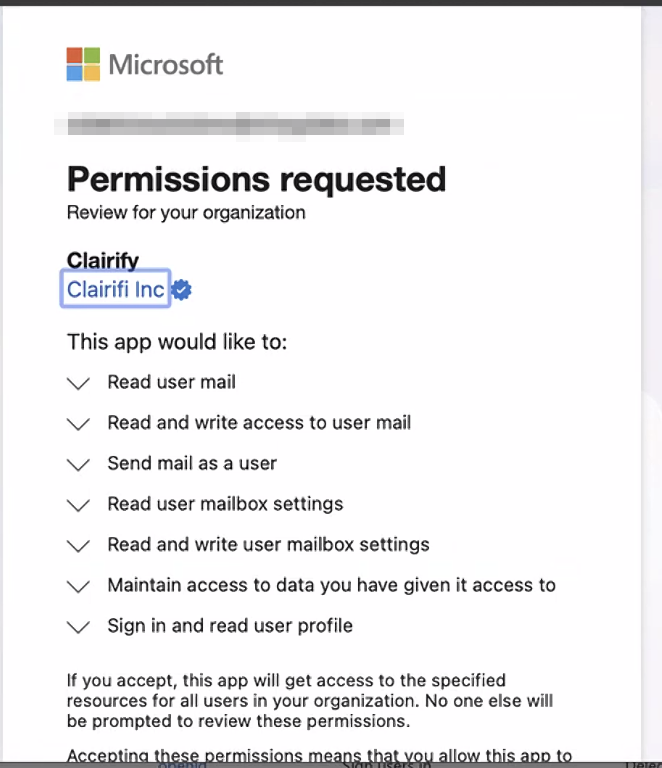
Full step-by-step instructions are in Before You Can Login With Outlook.
Token Lifecycle & Revocation
Access tokens are short-lived; refresh tokens (offline_access) keep sessions active until access is revoked or you sign out. Either option immediately terminates our access to your mailbox and its change notifications.
To revoke access:
- Individual: My Account > Apps & devices, or My Apps, or
- Global Administrator: Microsoft Entra > Enterprise applications > Clairify > remove the app or revoke consent.
Security & Access Transparency
- Credentials & secrets - OAuth tokens are encrypted at rest.
- Access controls - We enforce role-based, least-privilege access to production systems and customer data (emails, summaries, categories/metadata), cryptographic secrets/tokens, and operational tooling (databases, storage, logs, admin consoles).
- Accountability - All privileged access—including use of administrative tooling for technical support and debugging—is logged and auditable.
Scope Change Policy
Any addition or elevation of permissions requires renewed admin consent. When Clairify adds a permission, an administrator must approve it before it can be used in production.